Skip to content

Repositories

Create a Repository

You can add a new repo from the sidebar or the repos list of the group.
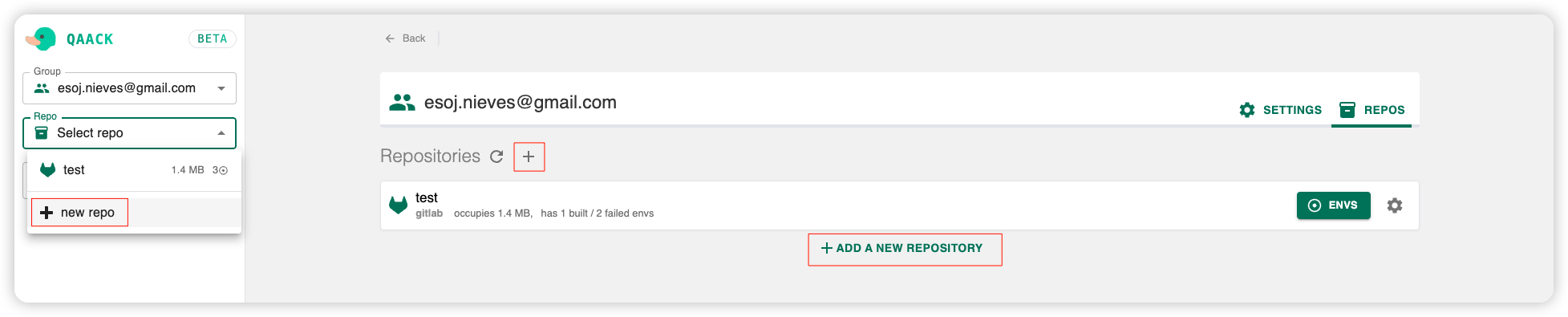
add-repo

You will be redirected to the repository form.
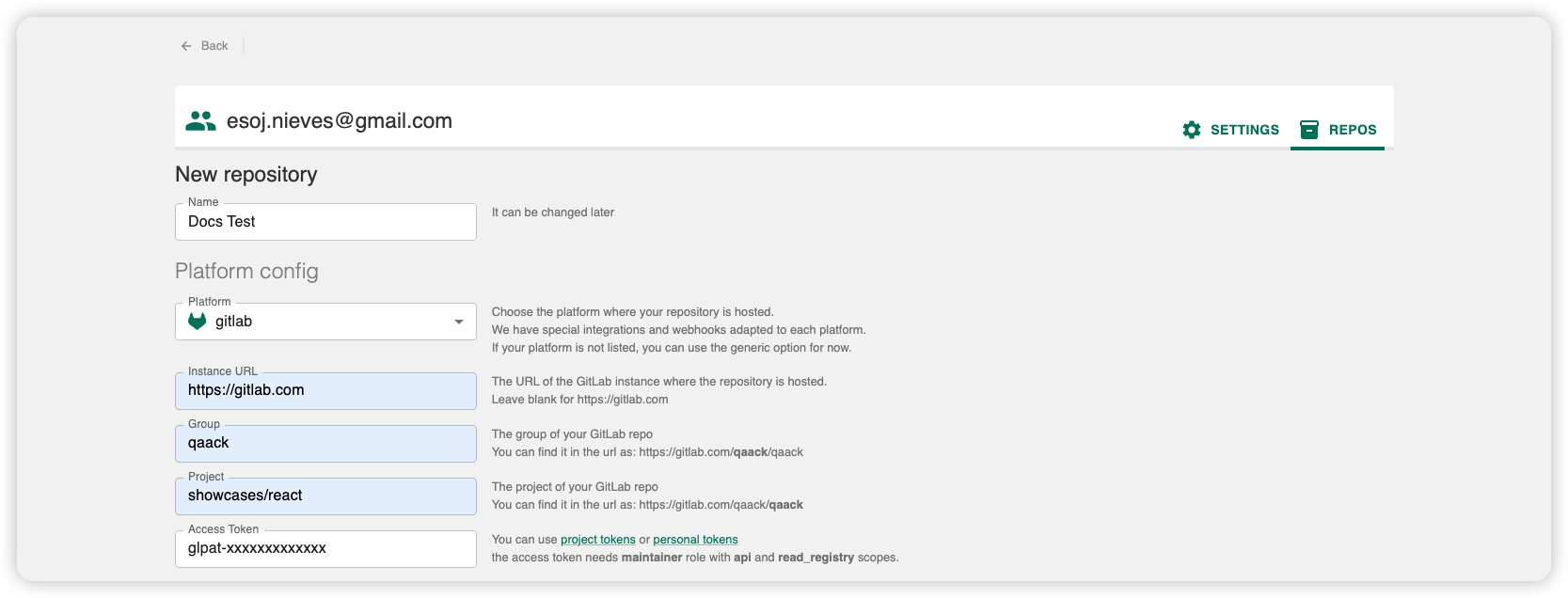
repo-form

  • Select the name of the repo
  • Select the git hosting platform

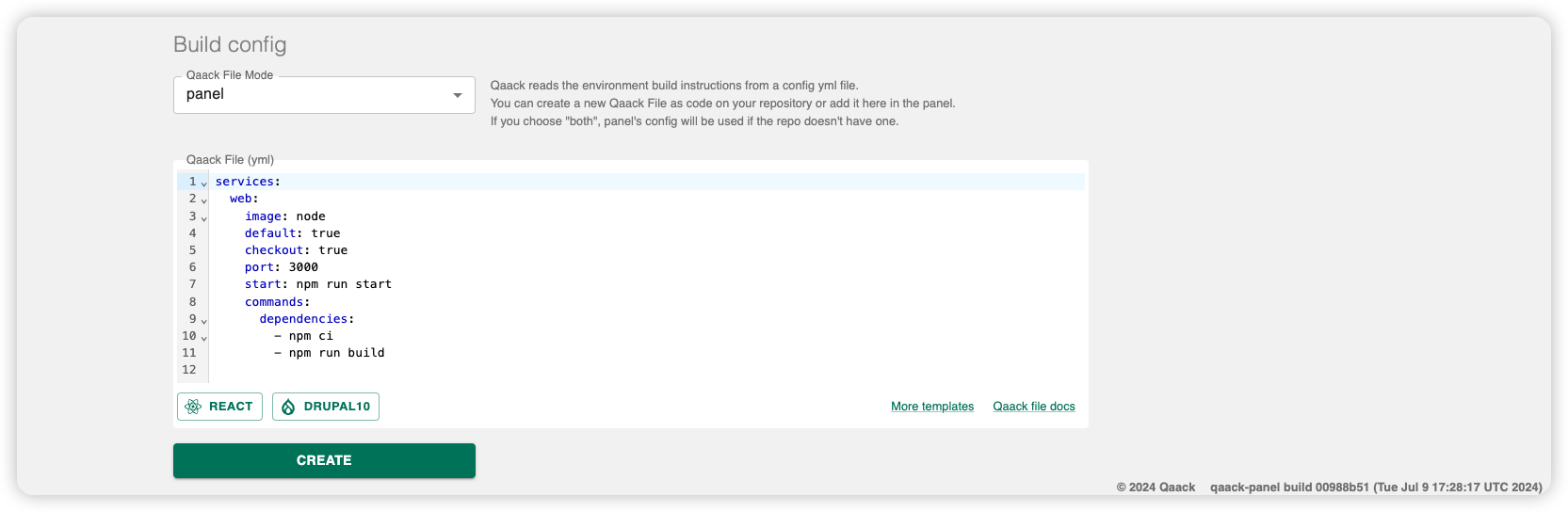
repo-form-2

  • Decide the source of your qaack configuration file. That file will be used to build the web environments of your repo.
  • You can select "repo" as the source, in that case the file will be taken from the repo on the route /.qaack/qaack.yml.
  • You can also select "panel" as the source, in that case you will have to introduce the configuration file in the form. (You can change it later)
  • If you select "both" the file will be taken from the repo and if it's not present, it will be taken from the panel.
  • Provide your config file, you can see details about the format of the qaack configuration file in the Qaack file specification.

Repository Settings

Once the repo is added you can see it in the repos list. Select it and go to the details, then press on the settings tab.

Here you can configure multiple features that will be taken into account when building the environments of the specific repo.

Who can edit these settings is in the permission matrix: group Owner/Admin or a maintainer of this repository. Creating, deleting, and transferring repositories still require group Owner/Admin.

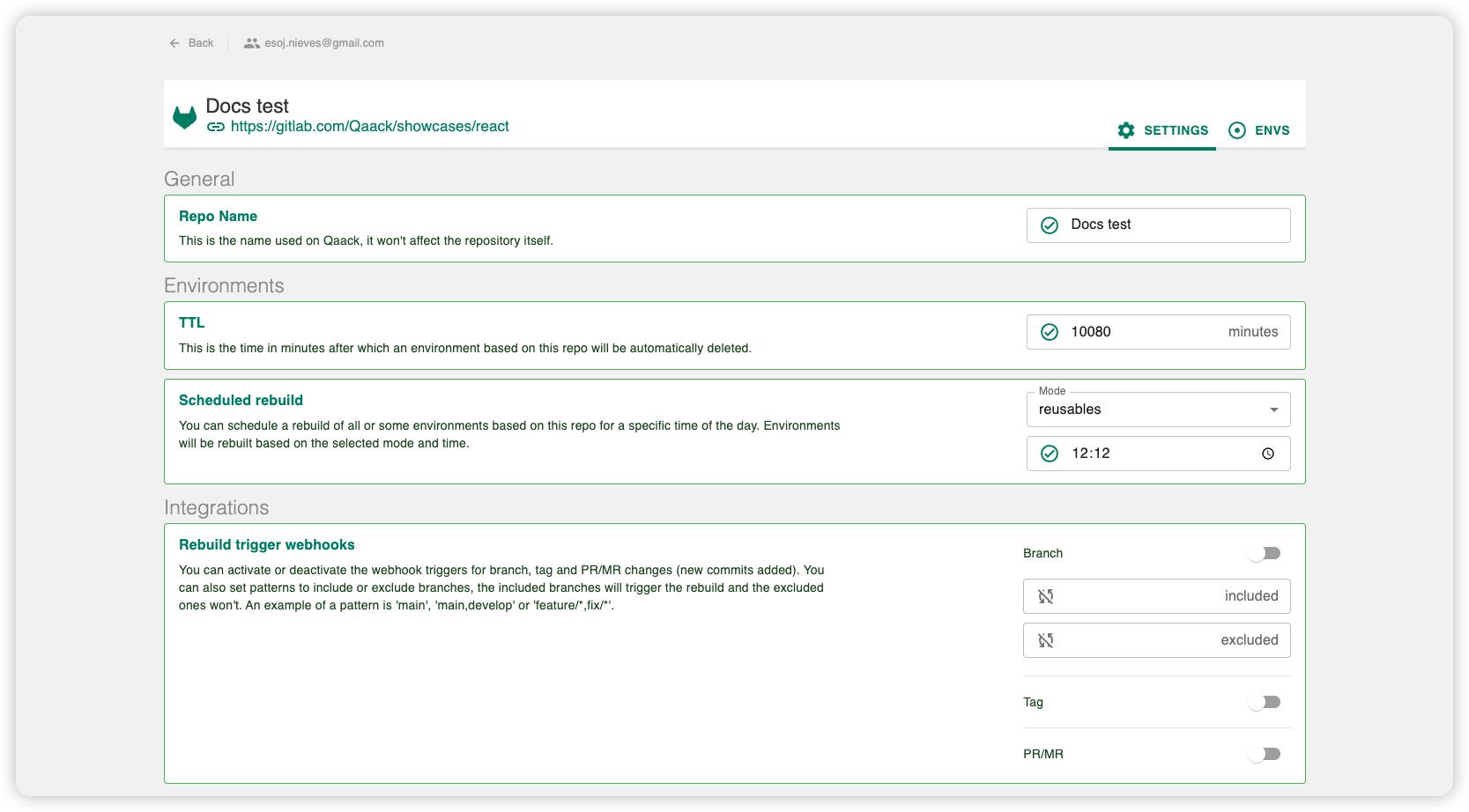
repo-settings

  • Change the name of the repo
  • Change the TTL of environments created from this repo (switch it off for no expiry, or pick a day / week / month, or Custom for an exact number of minutes). They are automatically deleted after that many minutes from creation. This value is shown as the repository default when creating an environment or editing its TTL, and is selected automatically if it matches a day, a week, or a month.
  • Change integrated triggers from your git platform that will trigger the rebuild of the environments.
  • Update the access token under Integrations for GitHub, Azure DevOps, Bitbucket, or a generic Git remote (GitLab has the same field plus automatic rotation). Paste a new token and leave the field — it replaces the stored credential. Who can do this is the same as other repository settings.
  • Schedule the rebuild of the environments on a specific time.
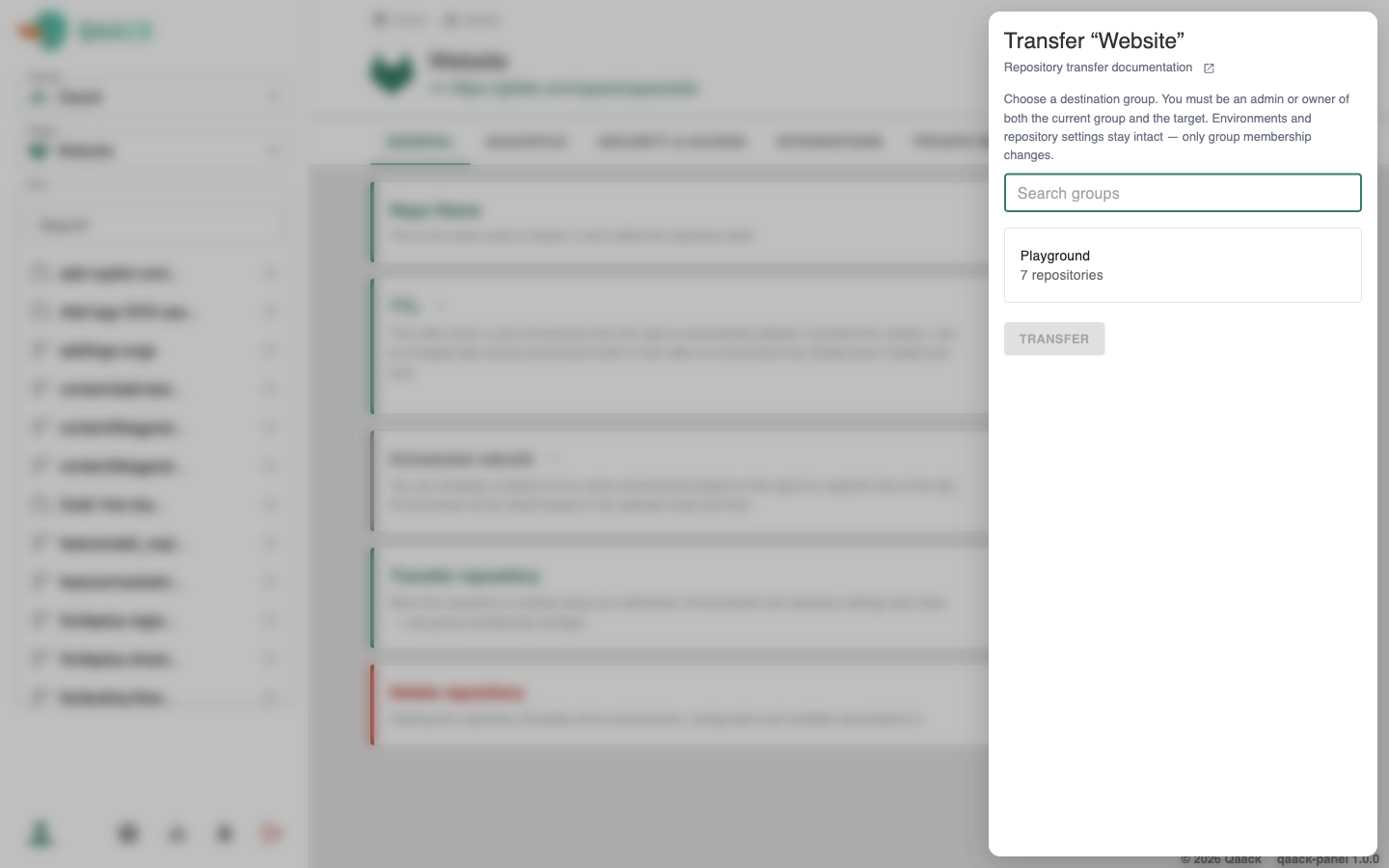
  • Transfer the repository to another group (Admin/Owner of both the current and target groups). Environments and repository settings stay as they are — only the group membership changes. If some maintainers are not members of the destination group, the transfer drawer asks whether to invite them into that group or remove their maintainer role.
repo-settings-2

  • Check the ssh key used by Qaack for the repo.
  • Manage Maintainers under Security & Access (see below).
  • Update the configuration file anytime.
  • Add variables for the building process of the environments.

Repository maintainers

Repository permissions sit on top of group roles. A maintainer is a group member who can administer this repository only — full settings access without becoming a group admin. Use this when each team should own its own project inside a shared group.

The permission matrix is the full who-can-do-what table (settings, maintainers, reusable delete, create/delete/transfer, and environment actions).

Managing maintainers

  1. Open the repository → SettingsSecurity & Access.
  2. In the Maintainers list, add a group member by searching name or email (suggestions are limited to people already in the group), or remove one.

Notes:

  • Group owners and admins already manage every repository; they do not need a maintainer row.
  • The person you add must already be a member of the group.
  • Existing maintainers (and group admins/owners) can add or remove maintainers.
  • Removing someone from the group also removes their maintainer roles in that group's repositories.
  • Transferring a repository to another group requires a choice when maintainers are not already members of the destination: invite them as members, or remove them as maintainers (see Transfer under Repository Settings).

Repository environments

Go to the envs tab on the repo details page.

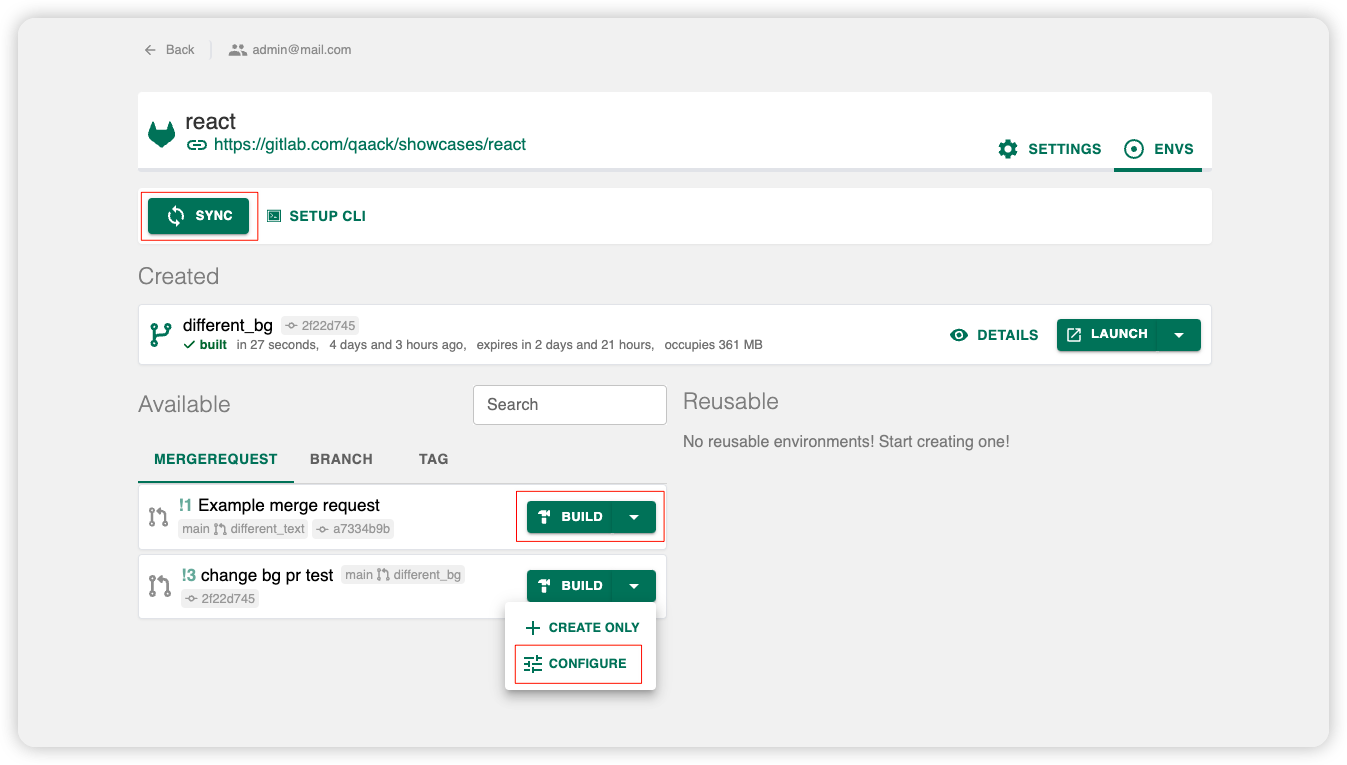
Here, you can sync the git refs (branches, tags and PR/MRs) of the repo with Qaack. They will appear as available environments in the envs list. You can build them quickly with the build button.

repo-details

You can also configure the build settings before building the env.

build-settings

Once an env is built you can launch it and start testing your code.

launch-env